
Once a Team Member has been added to the Company Profile, Service Providers can delegate their work by assigning Team Members to Work or Quote Requests. They can set different permissions for Team Members by choosing an appropriate level of access.
This can help to distinguish between different roles and responsibilities within the organisation.
Contents
Assign Team Member to a Job
1. Sign in to the portal
2. Go to the Jobs page (Wrench Icon  )
)
3. Select the Job
4. Click 'Assign Employee' to assign an employee to the Job

5. Choose the Team Member from the list
Note: Multiple Team Members can be assigned to a Job at the same time
6. Click the 'Assign Job' button

Change Team Member Assigned to a Job
1. Sign in to the portal
2. Go to the Jobs page (Wrench Icon )
3. Select the Job
4. Look for the assigned Team Member's name under 'Assigned To:'
5. Click 'Reassign Job' to reassign the Job to a different Team Member
6. Choose the Team Member from the list
Note: Multiple Team Members can be assigned to a Job at the same time
7. Click the 'Assign Job' button 
Change Permission for Team Member
1. Sign in to the portal
2. Click the Company Icon at the top right of the page 
3. Select 'Company Profile'
4. Click the 'Team Members' tab
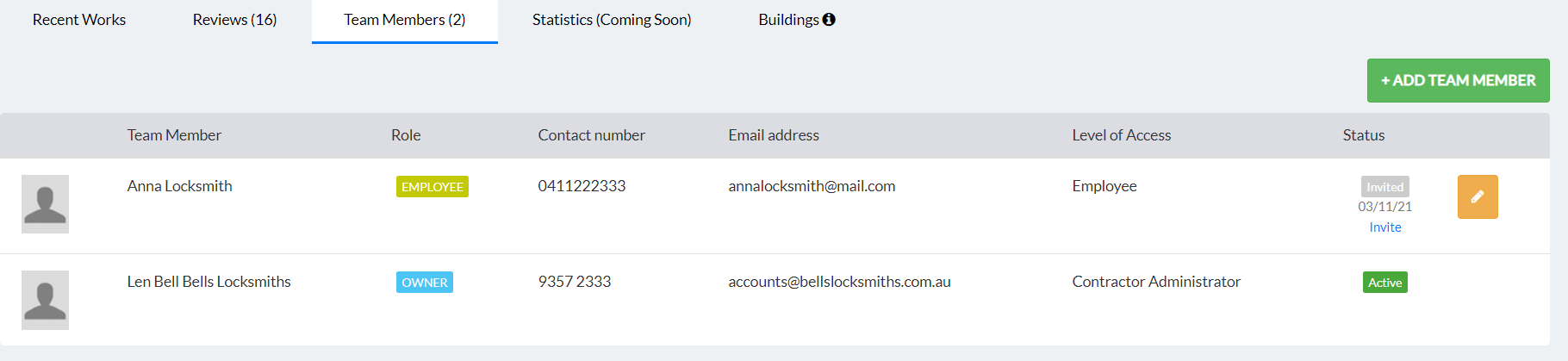
5. Click the 'Pencil' button in the row of the Team Member whose permission should be changed 
6. Click the check box to select or clear a selection for Level of Access 
7. Click 'Save'
Changes will be implemented to the selected Team Member's permissions. When determining the level of access to assign to each employee, Service Providers should consider their work experience, skillset and availability.
Service Providers should contact us with any further questions regarding this process.
Comments
0 comments
Please sign in to leave a comment.