
Strata Managers can upload important documents for a Building, such as by-laws, Building policies and asbestos reports, to the Building Settings page.
If permitted by the Strata Manager, a Service Provider can view documents listed on the page.
Contents
View the Building Settings Page
Strata Managers can select the Buildings Icon to go to the Buildings page.
Then search for the Building by entering the Plan Number, Address or Strata Manager of the Building in the Search Bar.
Click the Plan Number in the left column of the row for the Building to go to the Building Settings page.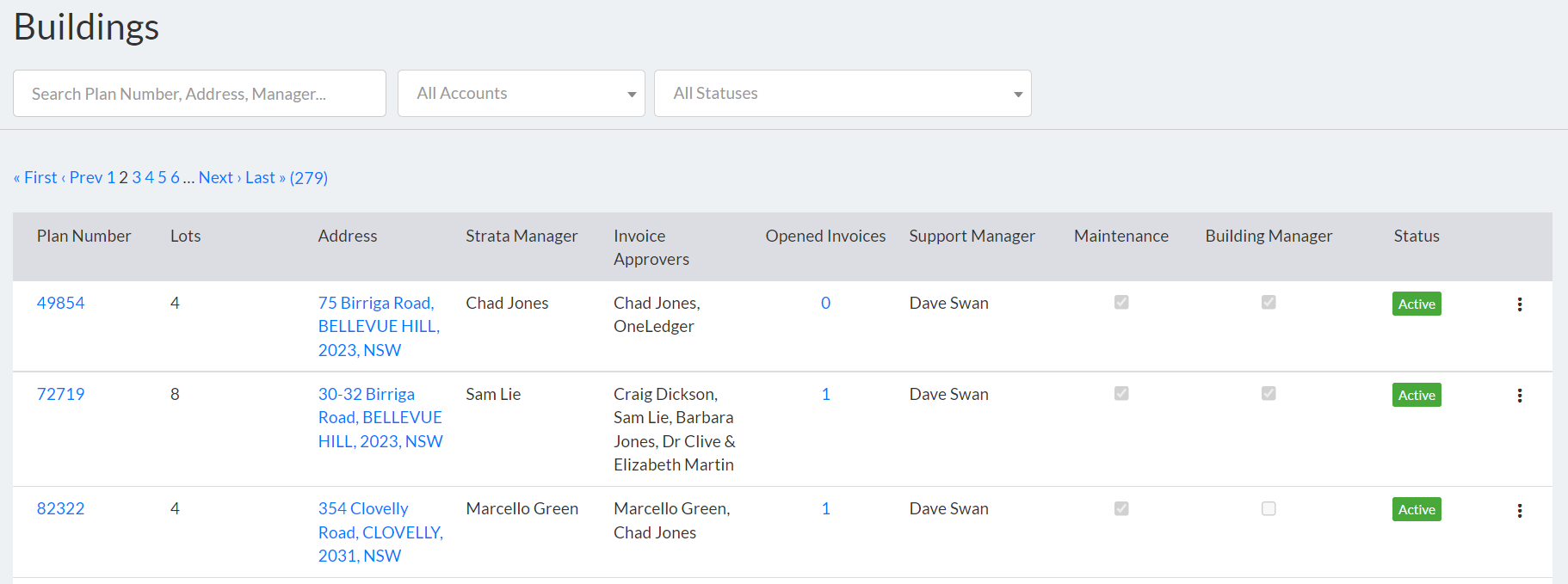
Another way to view the page is by selecting the Wrench Icon to go to the Jobs page.
Search for the Job by entering the Plan Number, Address or Strata Manager of the Building in the
Search Bar.
Click the three dots on the right of the row for the Job and select 'View building page'. The Building Settings page will open.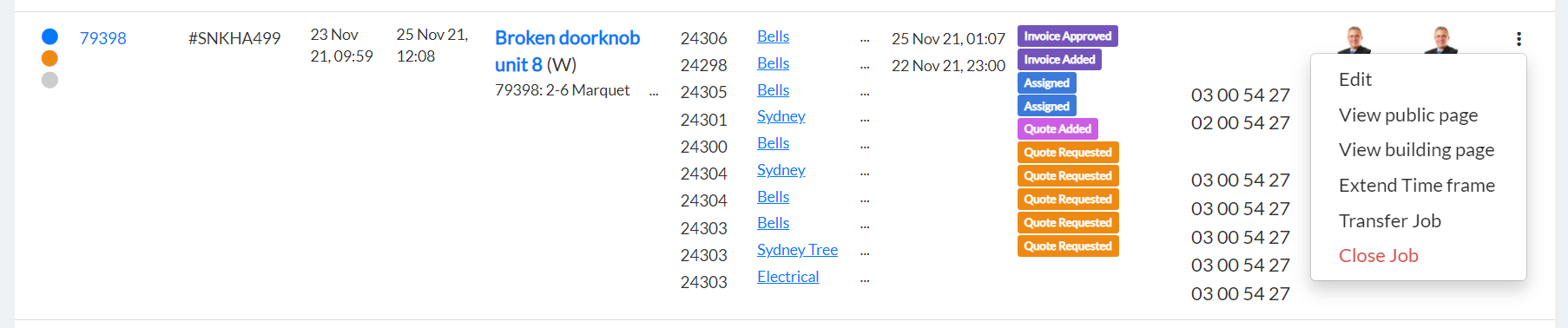
Upload Documents
1. On the Building Settings page, select the 'Important Documents' tab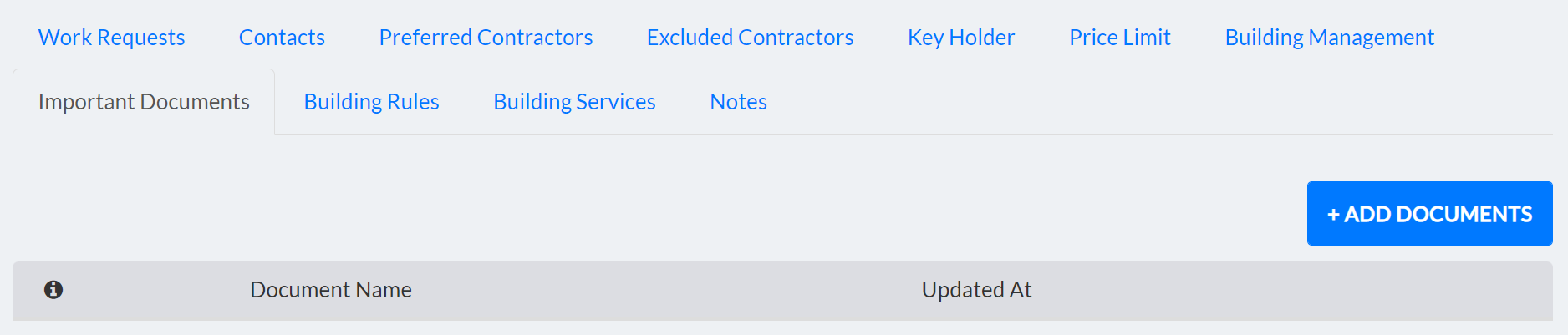
2. Click '+ Add Documents'
3. Click 'Choose File' and select the document to upload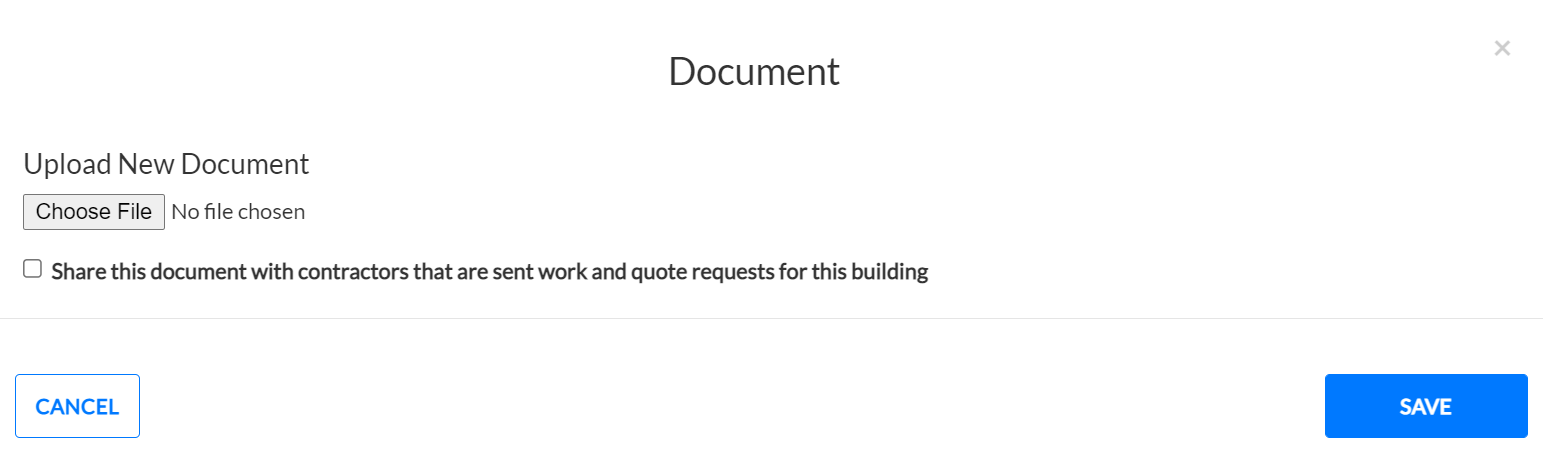
4. Select or clear the check box for 'Share this document with contractors that are sent work and quote requests for this building'
5. Click 'Save'
If the Strata Manager chooses to share uploaded documents with Service Providers, they will be visible to contractors when Work and Quote Requests are created for the Building.
For more information, please see Functions and Features on the Building Settings page.
Strata Managers should contact us with any further questions regarding this process.
Comments
0 comments
Please sign in to leave a comment.